
LinkedIn Banner Preview
Check where your profile photo may cover your LinkedIn personal profile banner on different devices.
Preview your banner
PNG or JPG, ideally 1584 × 396 pixels. You can also drop it onto the preview.
Your banner stays in your browser.The preview and downloaded image are generated on your device. Nothing is uploaded to this website, and I don't receive a copy.


 No image yet
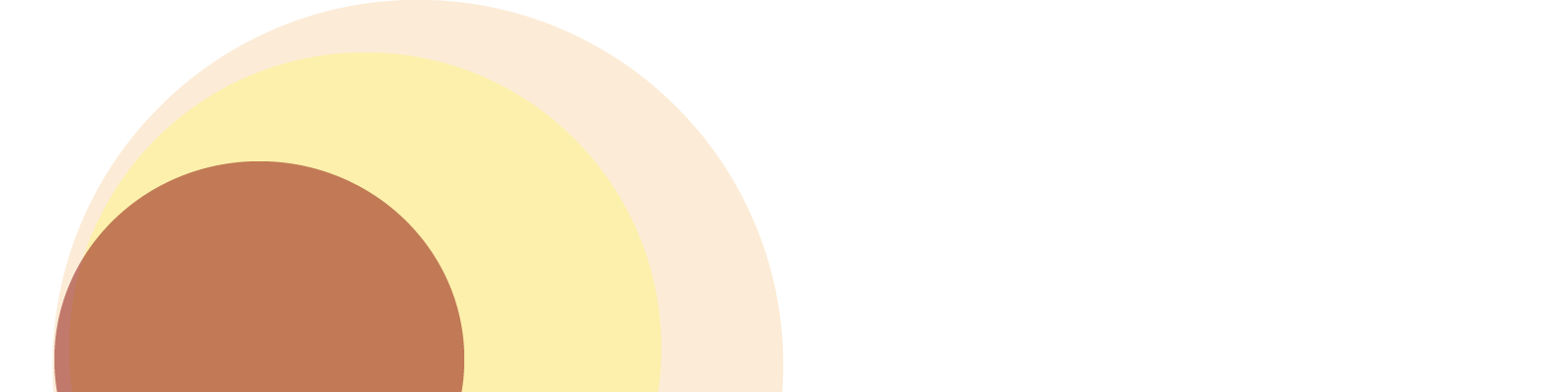
- Desktop / Laptop Smallest circle. The profile photo on desktop and laptop screens, and in the tablet layouts I tested.
- Mobile Middle circle. The profile photo on a phone, in the LinkedIn app and in a mobile browser.
- Some Mobile Browsers Largest circle. The largest area, seen in some mobile browsers at narrow widths. Treat it as the worst case.
The areas are guides based on the LinkedIn layouts I tested, not official LinkedIn measurements. What the photo covers changes with the device, browser, window size and screen resolution, and whenever LinkedIn updates its design, so check the banner on your own profile after uploading it.
Your image
Download banner saves your image at 1584 × 396, cropped as shown, without the overlay. Download overlay guide saves the combined obstruction areas as a separate transparent 1584 × 396 PNG to use as a layer in your design tool; it is not part of your banner.
How your image is handled
Your image is processed entirely in your browser. It's used to generate the preview and, if you choose, a downloadable 1584 × 396 copy, cropped as shown and without the guides.
The image isn't uploaded or saved by this website. Resetting the tool or closing the page clears the current preview.
LinkedIn personal profile banner guidelines
LinkedIn now calls this image the cover image; it used to be the background photo. LinkedIn Help gives these specifications for personal profiles; the 4:1 aspect ratio follows from the recommended dimensions.
| Property | Recommendation |
|---|---|
| Image dimensions | 1584 × 396 px |
| Aspect ratio | 4:1 |
| File formats | JPG or PNG |
| Maximum file size | Less than 8 MB |
| Profile type | Personal LinkedIn profile |
The file type and size are requirements. The dimensions are a recommendation: LinkedIn accepts other sizes and lets you crop and reposition the image when you add it. Company and showcase Pages use a different cover image, so this guide and the overlays apply to personal profiles only. Checked against LinkedIn Help on 15 November 2026 (sources).
How to keep banner text from being covered
Your round profile photo sits over the lower-left part of the banner, so text, logos and faces placed there can be partly or completely hidden. In every layout the overlays represent, the photo stays within the left half of the banner, which leaves the right half as the most dependable space for anything people need to read. Keep some margin from the edges too: LinkedIn says the image can appear differently depending on the browser window size and screen resolution.
A banner that clears the photo on a laptop can still be covered on a phone, where the photo is larger relative to the banner. Switch between the overlays above, or use All Obstructions to see every area at once.
Make text large enough for a phone
On a phone, the full 1584-pixel banner is shown at roughly the width of the screen, a small fraction of its real size. Text that is comfortable on a monitor can become unreadable. Open this page on your phone and load your banner to see it at a similar size, and prefer a few large words to a full sentence.
Start from a good-quality image
Export the banner from the original artwork at 1584 × 396, or larger at the same 4:1 shape, rather than enlarging a small image. JPG suits photographs; PNG suits flat colour and text.
Check it on LinkedIn
After uploading, look at your profile in a desktop browser at a few window widths, in the LinkedIn app, and in a phone's web browser. If something important is covered, move it in your design and upload it again.
Frequently asked questions
What size should a LinkedIn personal profile banner be?
1584 × 396 pixels, which is a 4:1 aspect ratio. That is LinkedIn's recommendation rather than a strict rule; other sizes upload, and you can crop and reposition them in LinkedIn's editor.
What is the maximum file size for a LinkedIn banner?
The file must be smaller than 8 MB. LinkedIn Help states the limit as "less than 8MB" for cover images and as a maximum of 8 MB on its upload troubleshooting page. A banner exported at 1584 × 396 is normally well under it.
What file formats does LinkedIn support for background photos?
JPG (JPEG) and PNG. LinkedIn does not support GIFs, and formats such as WebP or HEIC need converting to JPG or PNG first.
Why does my LinkedIn profile picture cover part of my banner?
The profile layout places your round profile photo over the bottom-left part of the banner. The banner and the photo are sized separately in each layout, so how much of the banner the photo hides, and which part, depends on where the profile is being viewed. Using 1584 × 396 pixels means LinkedIn does not have to crop your image to fit, but it does not change where the photo lands.
Does a LinkedIn banner look different on mobile and desktop?
Yes. LinkedIn notes that the image can look different depending on the browser window size and screen resolution. On a phone the banner is much smaller and the profile photo covers a larger share of it than in the desktop, laptop and tablet layouts I tested.
Is there a guaranteed safe area for LinkedIn banner text?
No. LinkedIn publishes recommended dimensions but no coordinates for the area its profile photo covers. The overlays in this tool are practical guides based onthe layouts I tested, not official measurements, and LinkedIn can change its design at any time. The nearest thing to a safe area is the right half of the banner, which the photo did not reach in any of those layouts.
Can I use the same LinkedIn banner for personal profiles and company pages?
Not without changes. A personal profile cover image is 1584 × 396 pixels (4:1). LinkedIn recommends 1512 × 256 pixels for a Page's cover image, with a maximum file size of 3 MB, and the Page logo sits in a different place. This tool is for personal profiles only.
How do I change my LinkedIn background photo?
On a computer, go to your profile and select the edit icon at the top right of the cover image (or the camera icon, if you have not added one yet). Upload or change the photo, adjust it, and select Apply. In the LinkedIn app, open your profile, tap the cover image, choose to edit or change it, and tap Save. LinkedIn changes these menus from time to time; its help page has the current steps.
Is my image uploaded when I use this tool?
No. Your browser opens and draws the image on your device, and the downloaded banner is created there too. Nothing about the image, including its name, is sent to this website or anyone else. See How your image is handled.
Is this an official LinkedIn tool?
No. I made it independently. It is not affiliated with, endorsed by or supported by LinkedIn. LinkedIn is a trademark of LinkedIn Corporation.